
If you find yourself writing the same kinds of emails over and over, whether for work, volunteer roles, or just life, check out Gmail templates. It’s an easy way to save time drafting an email while still keeping things personal.
Note: Gmail templates are only available on the web version of Gmail. This feature is in the mobile app but I’ll share workarounds at the end to use templates on your phone.
Here’s how to set them up:
First, turn on templates in your Gmail settings:
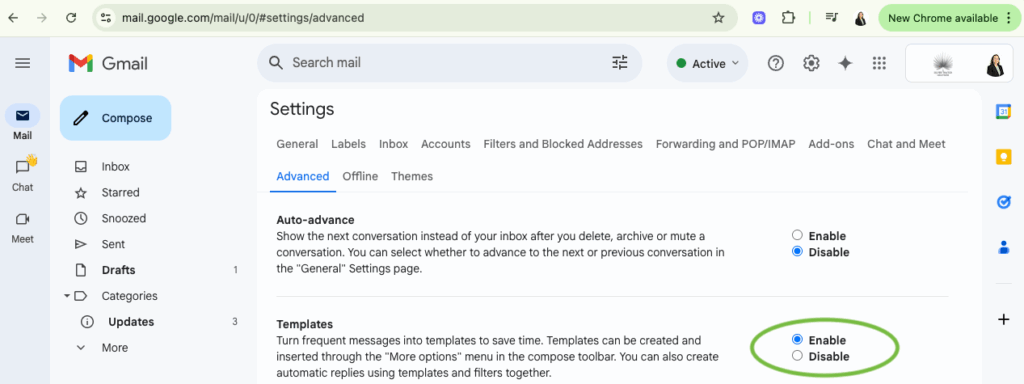
- Click the gear icon (⚙️) in the top right corner of Gmail.
- Select “See all settings.”
- Navigate to the “Advanced” tab.
- Find the “Templates” section and click “Enable.”
- Scroll down and click “Save Changes.”
Next, create your first template:
- Click “Compose” to open a new message window.
- Write your email as you normally would including a subject line and message. If Gmail automatically adds your signature, delete it from this draft as it will be included when you use the template later.
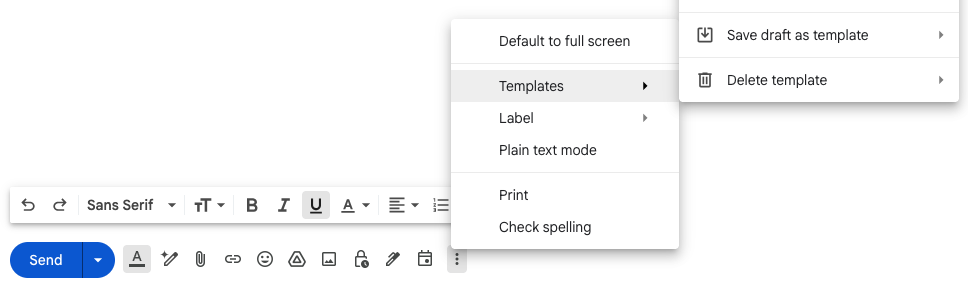
- Click the three vertical dots in the lower-right corner of the message window.
- Hover over “Templates”, then select “Save draft as template” → “Save as new template.”
- Give your template a name. This will be the subject line when you use the template.
To use the template:
- Click “Compose” to start a new email.
- Click the three dots in the lower-right corner.
- Hover over “Templates” and choose the template name.
- The email will populate. Customize it as needed then hit “Send”.
Workarounds on your phone:
Creating templates this way is specific to the web version of Gmail. However, an easy workaround is to save frequently used email text in your Notes app on your phone to copy and paste. An alternative is to keep pre-written emails as drafts and duplicate/edit them before sending.
Setting up templates for follow-ups, client onboarding, or meeting confirmations will save you time every day. It’s a small change that makes a big difference!