
Spring is in the air! It’s an ideal time to refresh not just our homes but also our digital life.
Do you have multiple calendars — on your phone, personal, and work accounts? It can take time to check all the places, cause you to double-book, or even miss appointments.
Streamlining into one calendar view takes some effort, but saves you lots of time (and headaches) later.
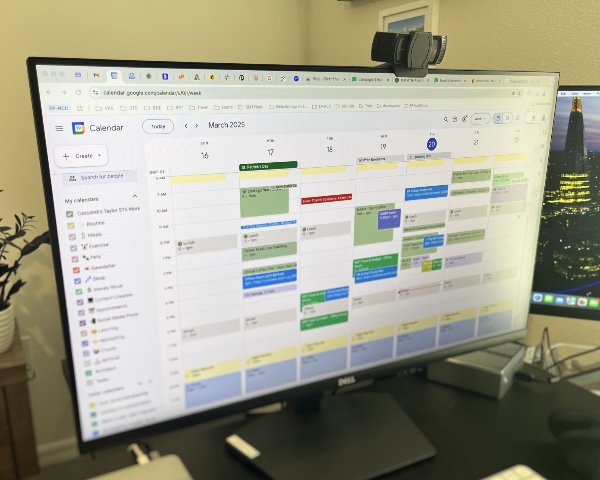
Without a calendar, unless you’ve got an incredible memory (who does with all we juggle?), things can fall apart fast! Are you strictly a paper calendar person? These tips are related to electronic calendars, but if you use an electronic calendar like Google, Outlook, or iCal for some appointments, these tips are relevant.
Many people, especially small business owners, struggle with setting up a calendar that works for them. Here’s what typically happens:
-
- They use a calendar connected to a personal email before they start their own business, which makes perfect sense.
-
- They start a business and create a work account. When they launch their business, they decide to keep work and personal life separate (like they did at their old job). So, they create a work email — like
mybusiness@gmail.com— and now they have two calendars.
- They start a business and create a work account. When they launch their business, they decide to keep work and personal life separate (like they did at their old job). So, they create a work email — like
-
- Sometimes, they upgrade to a custom domain. They get a “paid domain” email (e.g.,
yourdomain.com), which comes with yet another calendar. Now they’re juggling three calendars in three different places.
- Sometimes, they upgrade to a custom domain. They get a “paid domain” email (e.g.,
I was one of these people too — until I decided to consolidate everything in one place.
But What About Work-Life Balance?
If you’re resisting this idea, it’s likely because you want to keep your “work life” and “personal life” separate. I get it.
But here’s the thing: there’s only one you. Since you can only be in one place at a time, having one calendar makes it easier — it keeps everything organized, ensures you won’t double-book yourself, and gives you a clearer picture of your day.
Add Other People’s Calendars
You can even display other people’s calendars in your calendar (with permission, of course). For example, your client, partner, or child can share their calendar with you and you can toggle the view on or off as needed. This makes scheduling appointments so much easier. They can choose to let you see free/busy times and hide details, if that’s a concern.
How to Consolidate Calendars
Sorting this out can take a little time, but it’s worth the effort.
-
- Choose your primary calendar.
Decide which calendar you’re going to stick with (Google, Outlook, etc.). Then, open the other calendars and transfer appointments either manually or by exporting the calendar. Look ahead for recurring events, like birthdays and anniversaries. - Set your calendar email as the default.
Make sure all calendar invites — sent and received — go through the email connected to this calendar. - Request calendar sharing.
Ask your partner, kids, or even key clients to share their calendars with you. If you use Google Calendar, click here for instructions. If you’re on Outlook, click here.
- Choose your primary calendar.
Bonus: Create new calendars to further break down categories of work or home
Take your calendar to the next level and create new calendars within this view to categorize and color code different areas of your life or work. You could also just color code certain events within the same calendar. I spent time doing this for myself one day and looking at my calendar now makes me smile. As a highly visual person it serves as guardrails to see how I compartmentalize my life – or at least how I want my days to play out!
When you’re finished with the consolidation, you’ll be able to access your calendar across all your devices knowing that everything you need is in one place.